![LEIPURIN_LOGO_ORANGE_RGB-2.png]](https://knowledge.leipurin.com/hs-fs/hubfs/LEIPURIN_LOGO_ORANGE_RGB-2.png?height=50&name=LEIPURIN_LOGO_ORANGE_RGB-2.png)
Gather and prepare your material
1. Recipe PDF
Check the file size and the name
Upload the PDF in the right folder:
_2023-new-start-folder-structure / Downloads / Recipes
2. Cover image
The same image is used for the card view (list) and the main image in the recipe page
Format : JPG
Image ratio and size: square or landscape, no portrait format. Width: 1600 px
Image weight should stay below 300 kB
Click Export and name it:
recipe-name-recipe-leipurin.jpg
Leave out all nordic characters: ä, å ö, replaced by a and o.
Upload your image in the right place:
_2023-new-start-folder-structure / Images / Recipes
https://app.hubspot.com/files/1793565/
Add content detail
On HubSpot, go to Marketing / Files and Templates / HubDB
Select "recipes"
https://app.hubspot.com/hubdb/1793565/table/5485702
Or on the recipe page, using the HubSpot tools
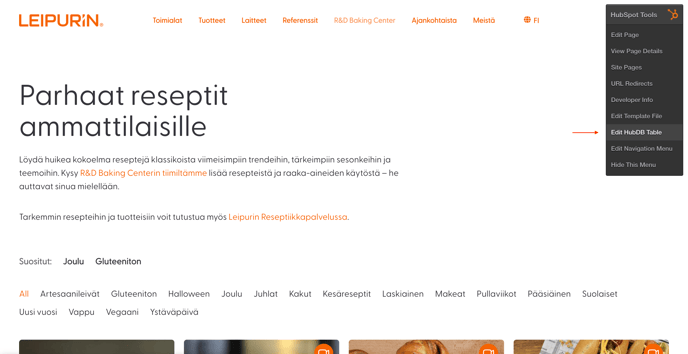
1. Add a new row in the table
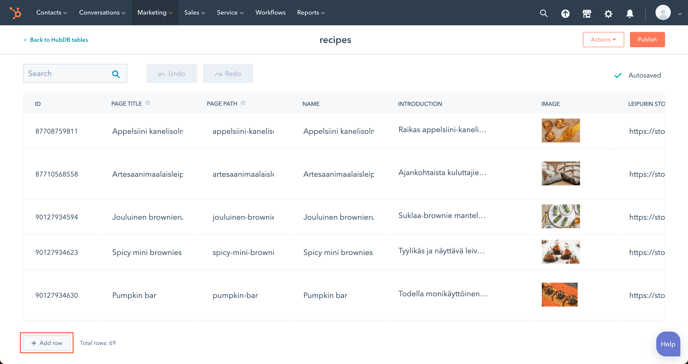
"Add row" button is located on the bottom right
2. Insert content
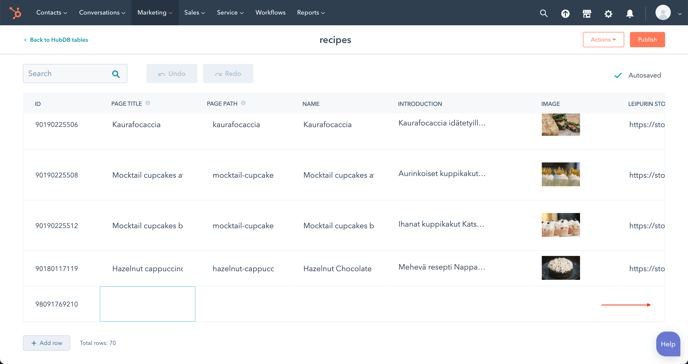
Populate the fields accordingly.
Page title is what is visible in the browser window bar
Page Path is the URL, so don't use nordic characters in it.
Name is the large heading on the page and title on the card
Introduction is the text below the image
3. Add image
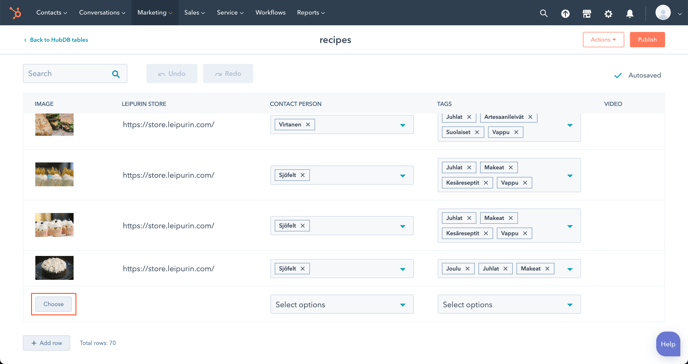
Scroll horizontally to find the "Choose…" button
4. Choose your image
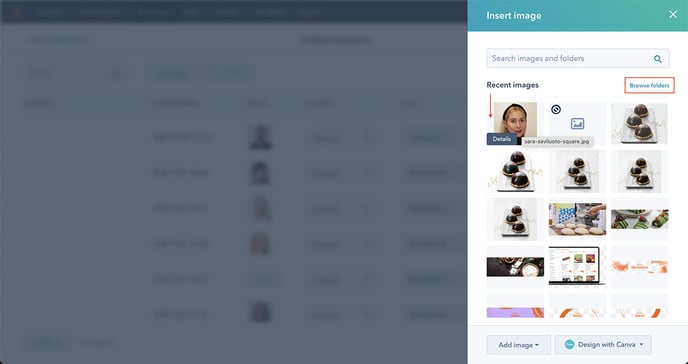
If you have just uploaded an image, it will show immediately. Otherwise, locate your image in the right folder, or use the search if you know the mane (strongly recommend)
4. Add the link to the store
Simply copy-paste from another row. It will display the banner in the page
5. Choose a contact person
(Let's get the first name visible as there are 2 Virtanen) It will show next to the form
6. Add tags
There can be multiple
7. Add a video if any
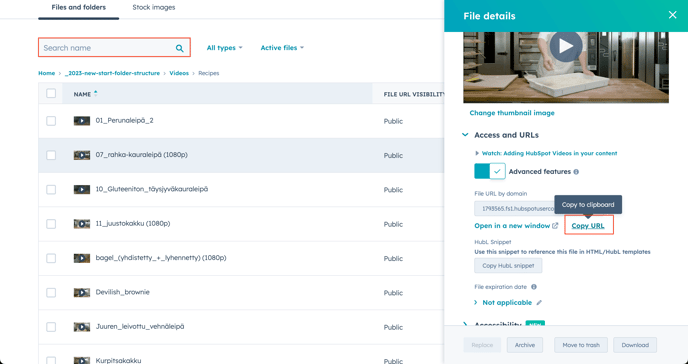
It will display the video banner in the page and play the video in a lightbox.
Notice how important it is to name your video file correctly so it's easy to find it with "search".
Copy the URL and paste it in the video field. Leave the field empty when there isn't any video to show.
8. Add a PDF to download
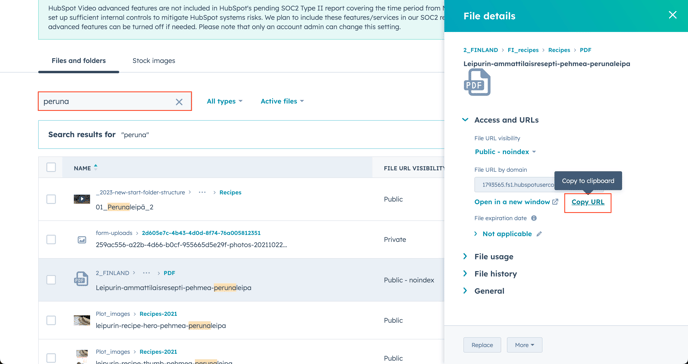
Here again, it is easier to locate your PDF searching it by name.
Copy the URL and paste it in the "Download link" field
5. Publish
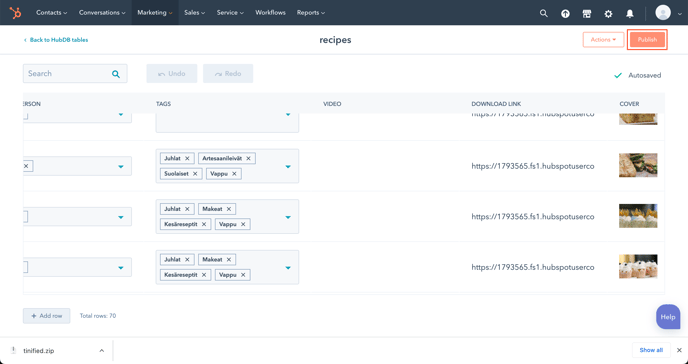
Click "Publish" on the top right to update your table.
Remember to go and check the page and make sure everything is correct.
Delete a recipe
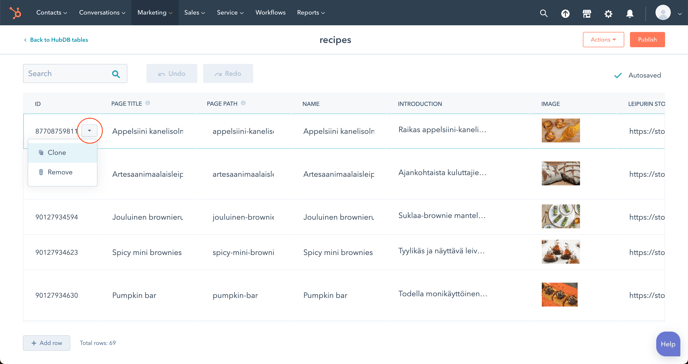
When the HudDB table is open, hover right from the ID and click the arrow, then choose "Delete"