![LEIPURIN_LOGO_ORANGE_RGB-2.png]](https://knowledge.leipurin.com/hs-fs/hubfs/LEIPURIN_LOGO_ORANGE_RGB-2.png?height=50&name=LEIPURIN_LOGO_ORANGE_RGB-2.png)
Page taxonomy
A page has content and settings split in two separate tabs.
Under settings you find the title, the name, the URL, the meta description, etc of your page.
Under content you organise the content of your page for your users to see. A page is framed by the header with the navigation on top and the footer at the bottom. These are global components (present on every page) and you won't have to touch them. We are looking into what's in between, the sections and the modules
Sections and modules
The sections are large building blocks of the website. They pile on top of each other.
Sections are made out of smaller components called "modules".
To make updates easy, "Saved sections" have been created with the most used elements of your website.
Edit a section
Watch the example for a Content Split section
Replace an image
To replace an image throughout the site, the best way is to replace the image file itself. Not upload a new image per page. Important, you can only replace an image with a file of the same format, a PNG cannot replace a JPG.
Go to Marketing / Files and templates / Files and locate the image you want to replace using search
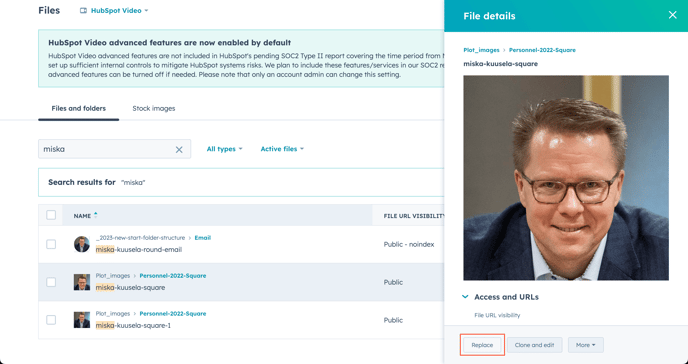
When replacing an image, check the actual size of it in the page, and change the values of the new image accordingly.
Edit text paragraphs
Be careful when copy-pasting some text from an external source (Word document, website, PPT, PDF…). Do it in the Source Code to avoid all code snippets that come along when copy-pasting from text processors, or choose copy as plain text if your browser allows it.
It's a good practice to check the Source Code anyway and remove unnecessary code.
Add Saved Section
Add a Download form, a Contact person to your existing page
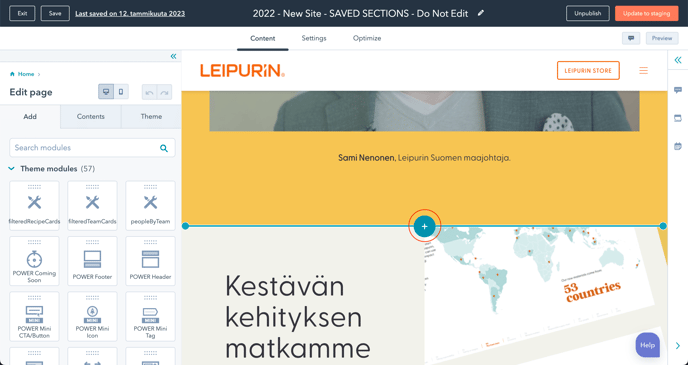
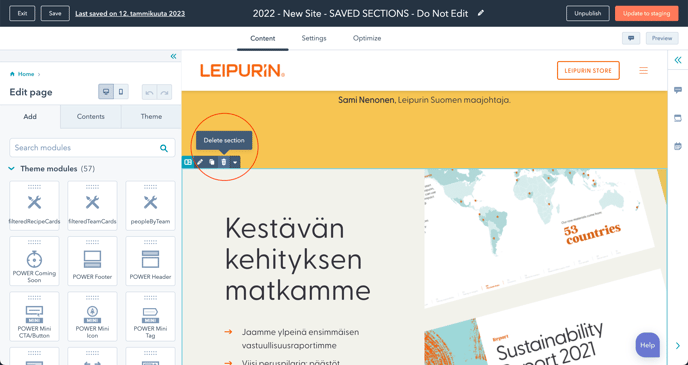
Remove content
Remove a section, not a module!
Add a card (?)
From the Image Boxes saved section added into the page…
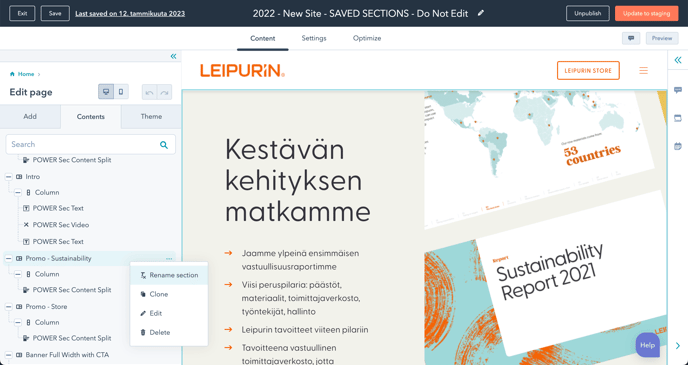
Name or rename a section
Preview and update
Always check on mobile
Version history
You can always recover some past version.