![LEIPURIN_LOGO_ORANGE_RGB-2.png]](https://knowledge.leipurin.com/hs-fs/hubfs/LEIPURIN_LOGO_ORANGE_RGB-2.png?height=50&name=LEIPURIN_LOGO_ORANGE_RGB-2.png)
These instructions are valid for everything published as a blog post
(Press release/tiedote, news, etc.)
Material needed
-
Text content
-
One image (you can also use default background...)
Image
Tiedote/Press releases don't necessarily use images. In that case it's possible to use one of the pattern that will display as the featured image in the blog list page.
If you have an image to use instead of the pattern for the featured image, make sure it is in a landscape format and at least 1280 pixel width, without any text on it.
The featured image will by default be used as the hero image of your post - wide and narrow It's possible to remove it in the post content editor and replace it with a plain colour background.
Text
You probably work on a text editor like Microsoft Word.
Please don't copy-paste directly from Word to the content editor, as it brings all kinds of code that will break the consistency of the website.
Or check if you have the option to copy your text "as plain text" from your browser menu.
Otherwise, work on a plain text version of your content, or copy-paste your content in the Source. The formatting will be done in the Post Editor.
When linking to a Website or landing page, link to "One of your page"
When linking externally, always open in a new window.
Note, the content is only one column.
Image inside your text : preferably full width (add size manually, check the spacing around the image)
Portrait : choose justified left and give spacing to the right of the image; or center the image with text centred below.
Select the right blog
Clone a blog post and give it a title
Filter by showing only posts tagged with"Tiedotteet"
Click the "Clone" button
Give a title and press "OK"
Edit settings
1. Change the URL
2. Add Author, Tags and Meta description
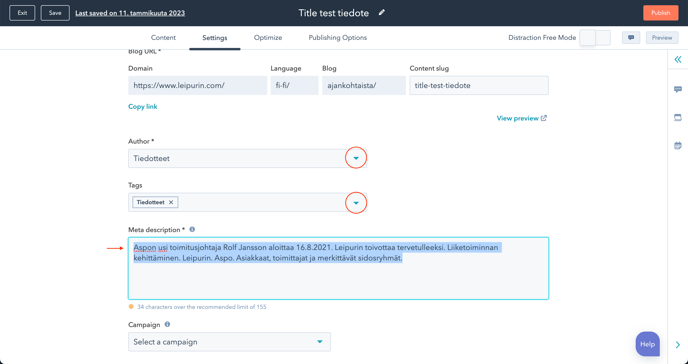
Select "Tiedotteet" as Author (will display as the intro to title) and Tags (will show in the filters) and add a meta description
3. Set the featured image
The featured image is the image showing on a the list view of the blog.
Several branded images are ready to use if you don't have a good enough image to show
Edit content
Change background colour to match your featured image (optional)
Edit the text
Don't copy-paste from Word or other text editor!
Format your subheadings in the editor.
You can switch to Distraction Free Mode.
Get familiar view the Source Code, it's a safe way to edit your content.
Add a link
Internal link opens in the same window. Only external ones (link to another website) open in another window.
It is also possible to link to a file to download.
Add a video
When embedding a video from your YouTube channel, remember to adjust the width to 900!
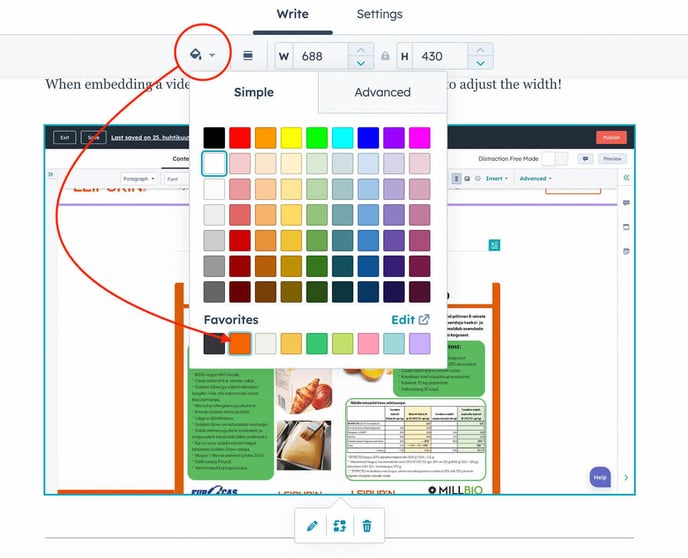
When adding a video from HubSpot, remember to change the colour of the play button as this doesn't happen automatically.
Preview and publish
Check especially on mobile as your title may need soft hyphenation
And double check everything after publishing: are links workings? Do images look good?