![LEIPURIN_LOGO_ORANGE_RGB-2.png]](https://knowledge.leipurin.com/hs-fs/hubfs/LEIPURIN_LOGO_ORANGE_RGB-2.png?height=50&name=LEIPURIN_LOGO_ORANGE_RGB-2.png)
Clone an existing campaign page
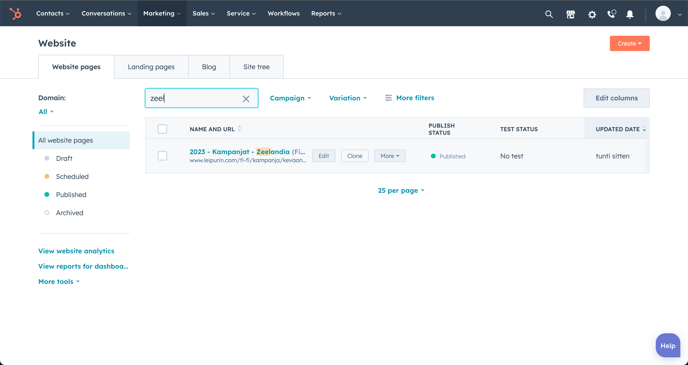
Start by finding an existing campaign page and clone it (use search terms "Kampanja" or a partner name.
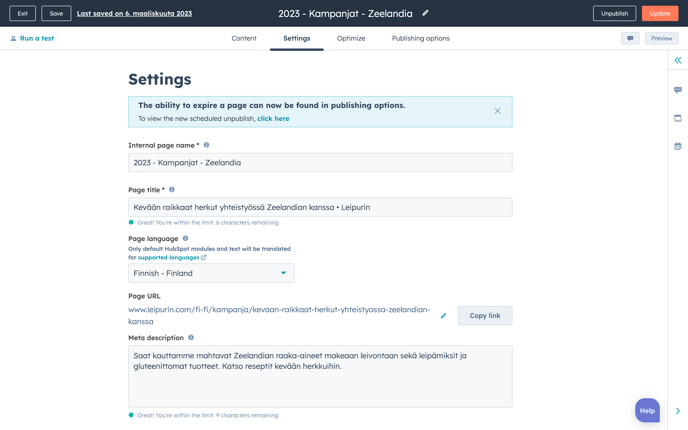
Page settings
Internal page name: Year - Kampanjat - Partner name
Page title: Keep "• Leipurin" at the end of the name
URL : remove "ä, ö" and replace with "a, o"
Write the meta description and select a featured image.
Select / add a campaign
Page logic and structure
The campaign pages always start with the logo of the partner
Then comes the title and a subheading if necessary
The core content includes text, images, video, product images, recipes, table, download etc.
At the end, there should always be someone to contact.
Note: Sections can be set to hidden or visible on desktop and mobile separately.
Building blocks : Saved Sections
The new HubSpot setup does not use template.
Instead, the pages are made with building blocks, named sections, that stack on top of each other. Their order is easily swappable.
We have prepared the most used sections and made them as Saved Sections for quick access.
Missing and needed Saved Sections will be created by Plot.
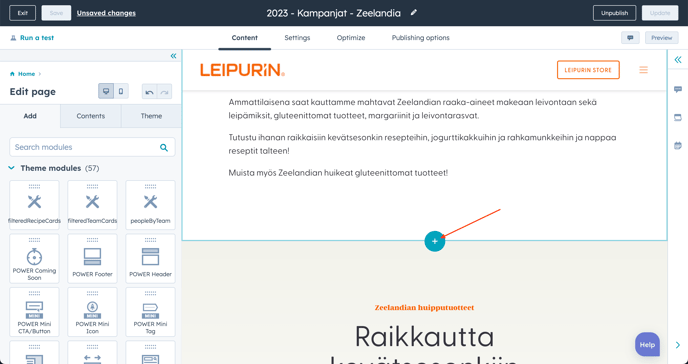 Access the Saved Sections clicking the blue + icon between sections
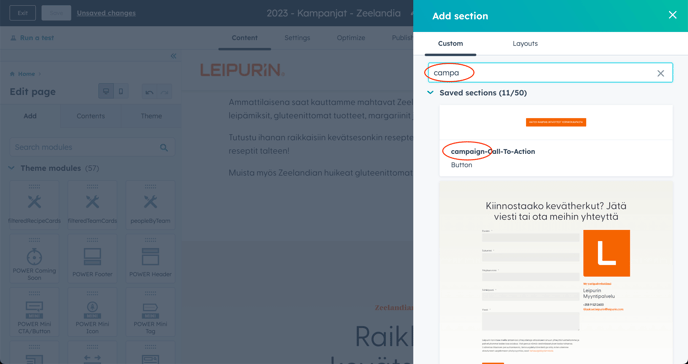
All the campaign specific Saved Sections include "campaign" in their name
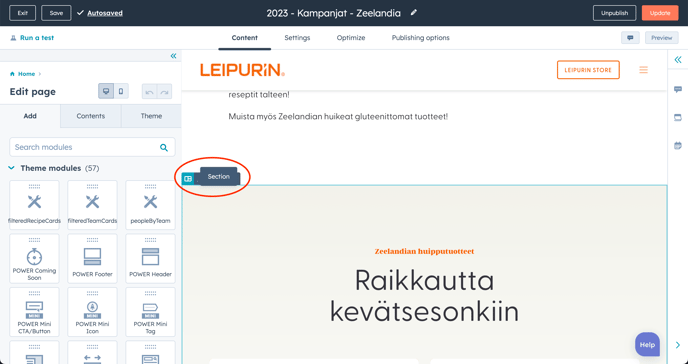
Make sure you grab a section and not a column or a module when swapping
File naming and folder location
Home / Images / Campaigns / FI / 2023 / … (Partner name)
File names should be descriptive and include the partner name (and leipurin at the end?)
Banners and promo elements
There is an existing Saved Section for the full width banner to place on the main page and other key strategic pages : campaign-banner-full-width
When there are multiple pages, we are using Image Boxes / Cards to promote campaigns.