![LEIPURIN_LOGO_ORANGE_RGB-2.png]](https://knowledge.leipurin.com/hs-fs/hubfs/LEIPURIN_LOGO_ORANGE_RGB-2.png?height=50&name=LEIPURIN_LOGO_ORANGE_RGB-2.png)
What is the featured image?
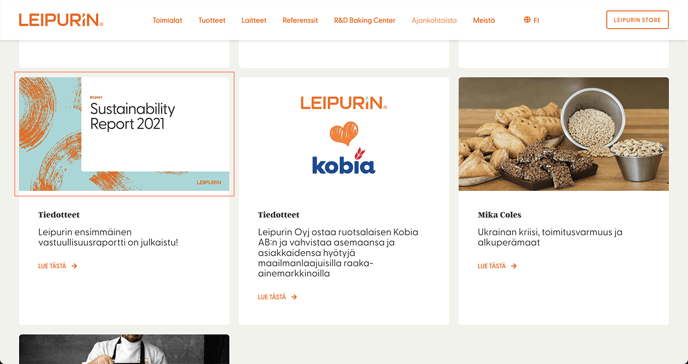
It is the image that shows on the Blog list view on Hubspot, but also the image that is used as a preview when the post is shared on social media.
Example with Sustainability Report 2021 featured image:
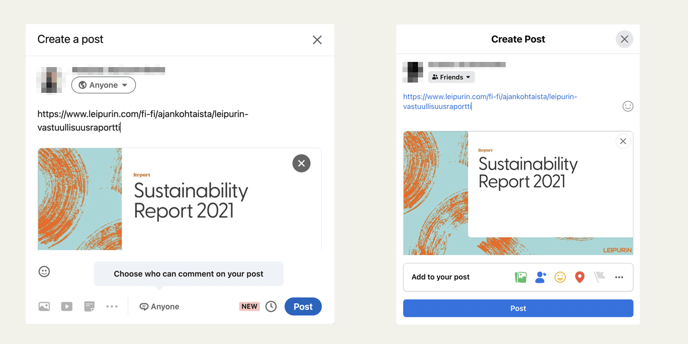
Example below of the URL of the Sustainability Report post shared on Facebook and LinkedIn:
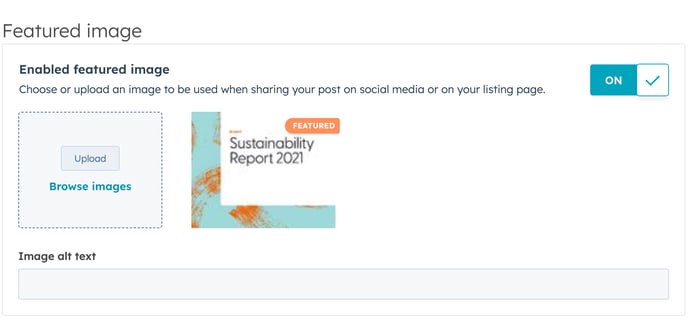
The image is set under Blog Settings:
We recommend to use an already existing file for featured images (for example a hero image). It prevents ended up with many versions of the almost similar picture.
1600 x 1000 at 72dpi is a good size compromise.
PNG is better for the patterns and illustrations, JPG is better for photographs.
PNG gives better quality but tends to be heavier. A too compressed JPG will result in poor quality and dirty or blurry looking image.
Tip: save your photographic image as a high quality JPG (no compression), then go to a free service like tinyjpg.com to optimise it to a smaller file size.
The Blog post header
By default, your featured image will also appear in your Blog post header.
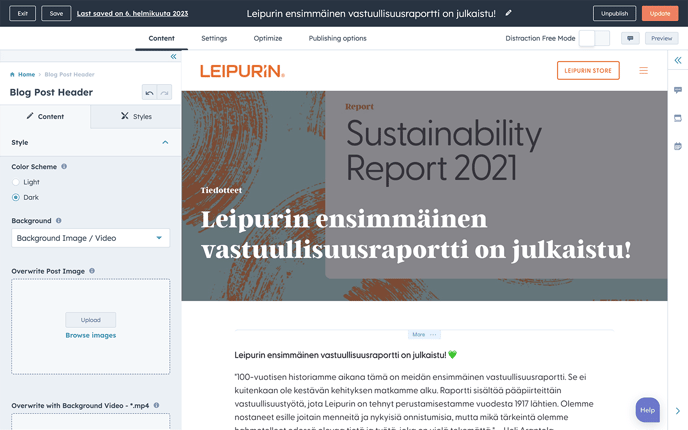
If the image is a person in action, a product, a piece of equipment, or an illustration, it will be fine as it is also the main image of your post.
But if your image includes a logo, some text (like on the example above), or if it is the Leipurin Brand Pattern which doesn't allow text overlay, the featured image must be overridden.
It can be replaced using the "Overwrite Post Image" under the "Style" section in the editor.
Or you can decide to use a plain colour background.
Always under "Style" in the editor, use the dropdown menu and choose "Background Color" instead of "Background Image / Video"
If you don't see your change or if the text disappear, don't panic, just scroll all the down in the editor panel and click "Click here" next to "Can't see your updates".