![LEIPURIN_LOGO_ORANGE_RGB-2.png]](https://knowledge.leipurin.com/hs-fs/hubfs/LEIPURIN_LOGO_ORANGE_RGB-2.png?height=50&name=LEIPURIN_LOGO_ORANGE_RGB-2.png)
Photo shoot instructions
Position your employee in front of a neutral background without any text or object visible. Make sure your image is not too dark, too red or too yellow and that there is enough contrast.
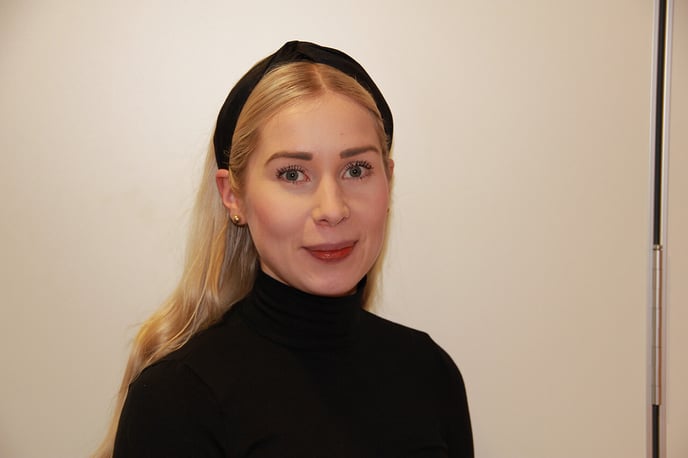
Leave enough space around the model - in this example, there could be more space above the head.
Don't store the original image on HubSpot files!
Crop your image
Open it in Photoshop

Crop it like in the example above, the subject should be centred. Make sure the selection is a perfect square (you can press "shift" while dragging the selection tool to constrain it to a 1:1 ratio)
(if you need instructions for another image editor application please contact antoine@plot.fi)
Export, optimise and name your file
If you're using Photoshop, everything can be done at once!
In the top menu bar, choose File / Export / Export as…

File Settings
Format : JPG
Quality : 5 should be enough
Image Size : 800 px
Image weight should be below 100 kB
Click Export and name it:
firstname-lastname-square.jpg
Leave out all nordic characters: ä, å ö, replaced by a and o.
Upload your image into this folder
_2023-new-start-folder-structure / Images / Personnel
https://app.hubspot.com/files/1793565/
Add content detail
On HubSpot, go to Marketing / Files and Templates / HubDB
Select "contact persons"
https://app.hubspot.com/hubdb/1793565/table/5484676
1. Add a new row in the table
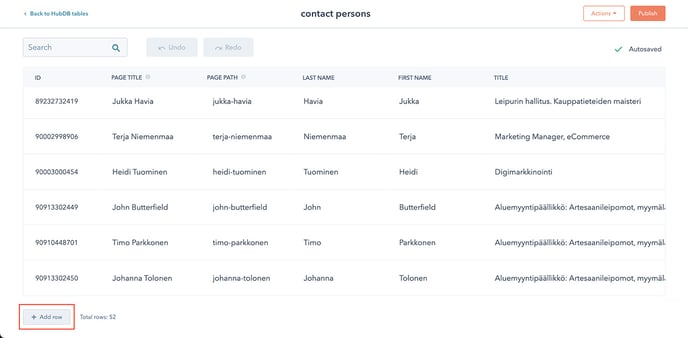
"Add row" button is located on the bottom right
2. Insert content

Populate the fields accordingly.
Don't use nordic characters under "Page Path" as it is the URL of your page.
3. Add image
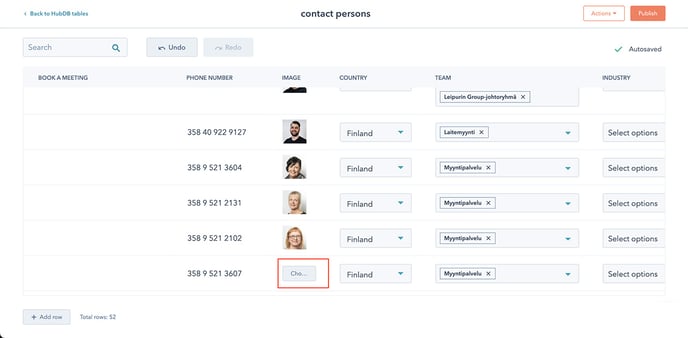
Scroll horizontally to find the "Choose…" button
4. Choose your image
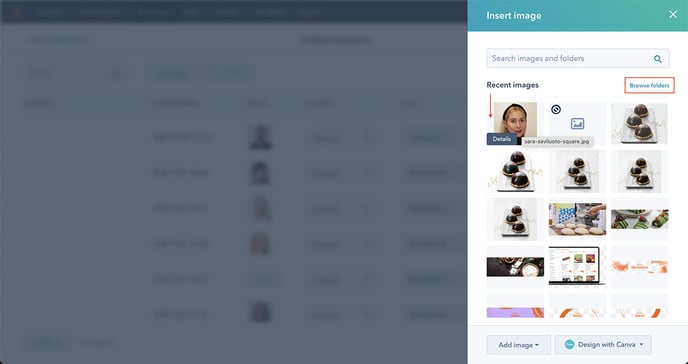
If you have just uploaded an image, it will show immediately. Otherwise, locate your image in the right folder
5. Publish
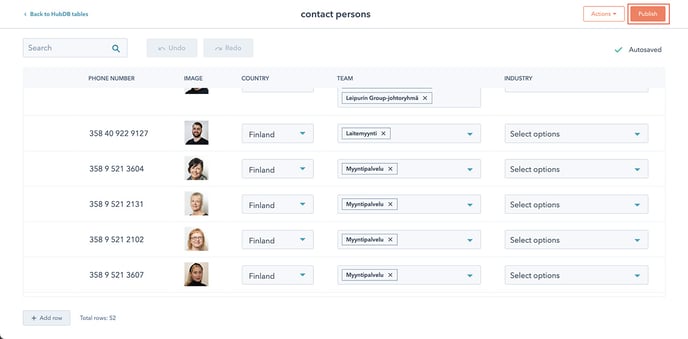
Click "Publish" on the top right to update your table.
Remember to go and check the page and make sure everything is correct.